TechNextBranding Miscellaneous

Staff self-serve · TechNext Pte. Ltd.

Your branded kit, ready to use.

Everything you need to look like TechNext in your inbox and on calls: the email signature, your profile photo, the animated logo, video-call backgrounds, business cards and staff ID cards. Each section has a short tutorial.

1

Email signature

Fill in your details, check the preview, copy it into Gmail or Odoo.

Signature generator Gmail + OdooLogo, icons and banner load from this page’s hosted files. Paste, never re-upload.

Name and title turn upper-case automatically. Your phone number becomes a WhatsApp link; a local PH mobile (09…) is converted to +63.

Live preview
FULL NAME TechNext
JOB TITLE • TECHNEXT PTE LTD.
+63 000 000 0000
email@technext.asia
technext.asia
Odoo ERP Solution and AI Automation
IoT • Apps • Networks
Facebook Instagram LinkedIn X YouTube TikTok
Tech solutions built to scale your business
This email is confidential and meant only for the person it’s addressed to. If you received it by mistake, please let the sender know and delete it. Sharing, copying or using it without permission is not allowed and may be unlawful.
Tutorial Gmail, Odoo and your Google profile picture

Add it in Gmail

  1. Click Copy for Gmail at the top of this card.
  2. Open Gmail, click the gear icon at the top right and choose See all settings.
  3. In the General tab, scroll down to Signature.
  4. Click + Create new, name it (e.g. TechNext), then click Create.
  5. Click inside the signature box and paste with Ctrl + V (Cmd + V on Mac).
  6. Under Signature defaults, pick your new signature for For new emails and On reply/forward.
  7. Scroll to the very bottom and click Save Changes.
The logo and icons load from the web automatically. Just paste; don’t re-upload any images.

Add it in Odoo

  1. Click Copy for Odoo at the top of this card.
  2. In Odoo, add ?debug=1 to the end of the address and press Enter. This turns on developer mode.
  3. Click your avatar in the top right and open your preferences.
  4. Click inside the Signature box, then double-click any word so the formatting toolbar appears.
  5. Click the </> icon at the right-hand end of that toolbar. The box switches to plain HTML.
  6. Press Ctrl + A, then Delete, then paste with Ctrl + V.
  7. Click Save, then send a message from any CRM lead to an outside address to check it.
Always paste into the </> code view. Pasting into the normal box strips the formatting and blows the logo up to full size.

Change your profile picture

This changes your Google / Gmail account photo only: the picture people see when you email from your @technext.asia account. Other apps are not affected.
  1. Open Gmail and click your profile photo in the top-right circle.
  2. Click the camera icon on your photo, or Manage your Google Account.
  3. Go to Personal info, then click your photo under “Profile picture”.
  4. Click Add profile picture (or Change) and upload your image.
  5. Crop or reposition it, then click Save as profile picture.
Animated GIFs play in Google Chat, Meet and opened emails; the inbox list shows their first frame. It can take a few minutes to update everywhere.
2

Profile photo generator

Upload a PNG of yourself and get your branded TechNext circle photo in seconds.

Drag the photo to move it, scroll or use the slider to zoom.

Upload a PNG with a transparent background. It stays on your device.

Ring
Background
  • Sharp, well lit, facing the camera, natural smile.
  • Business attire, head and shoulders in the frame.
  • PNG with the background removed (transparent), for example from remove.bg or Canva.
  • No group photos, filters, heavy shadows or low-light selfies.

No PNG with the background removed? Send your photo to the Marketing Lead on WhatsApp (0920 247 8918) and they will make it for you.

Tutorial Make your photo and set it on Gmail

Make the photo

  1. Remove the background from a sharp head-and-shoulders photo (for example with remove.bg or Canva) and save it as a PNG.
  2. Click Upload your photo and choose the PNG. It is placed in the ring straight away.
  3. Drag the photo so your head sits under the logo, and zoom until your shoulders fill the bottom of the ring.
  4. Pick the ring and background, then click Download HD.

Use it

  1. Set it as your Google / Gmail profile picture (steps in the email signature tutorial).
  2. Use the same file on LinkedIn, Odoo, Teams and WhatsApp so you look the same everywhere.
Gmail crops photos to a circle; the ring sits right on that circle, so it frames your photo there too. Natural daylight from a window in front of you gives the cleanest result.
4

Video-call backgrounds

Four TechNext × Odoo designs for Zoom, Teams and Google Meet, 1920 × 1080.

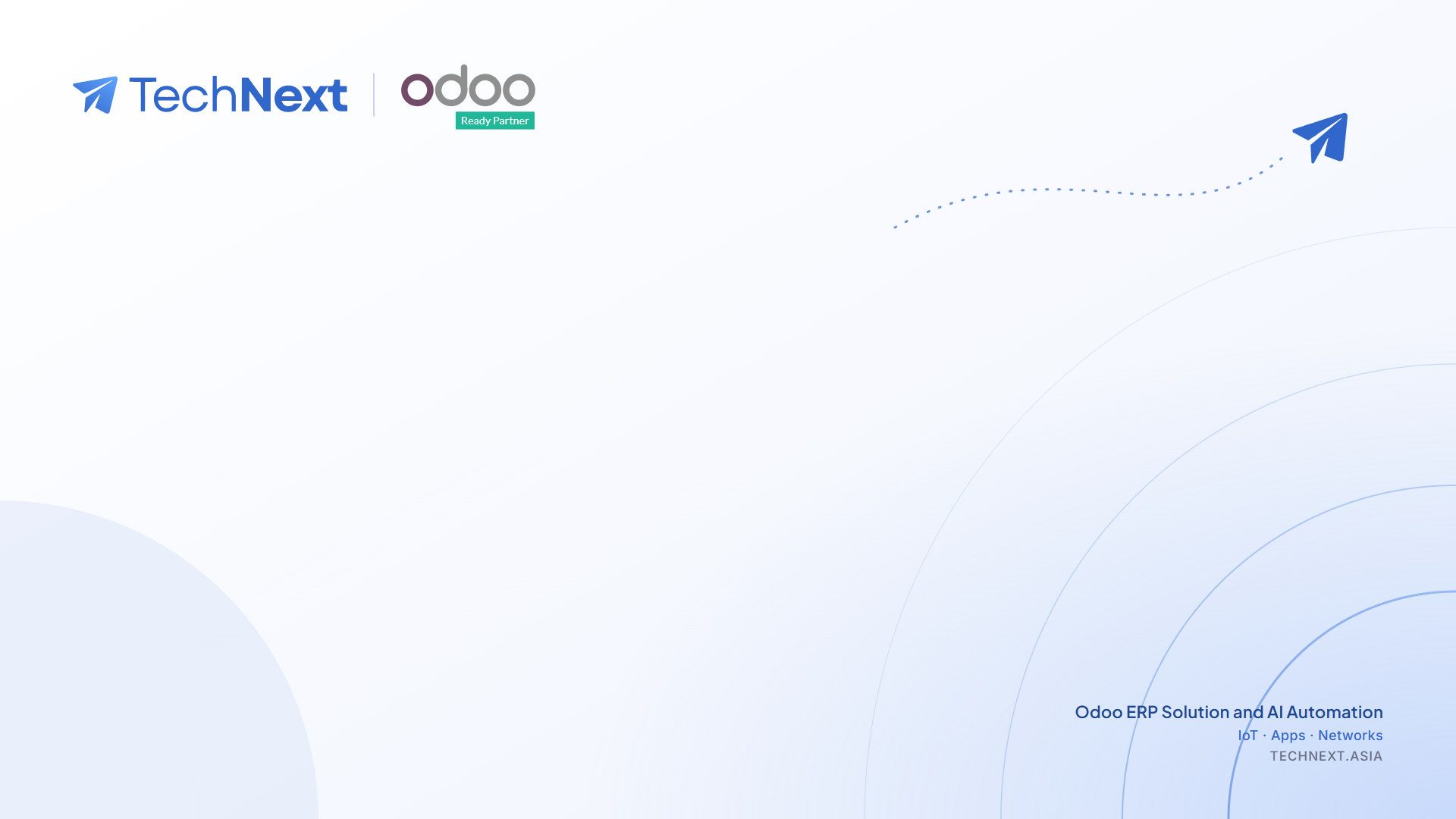
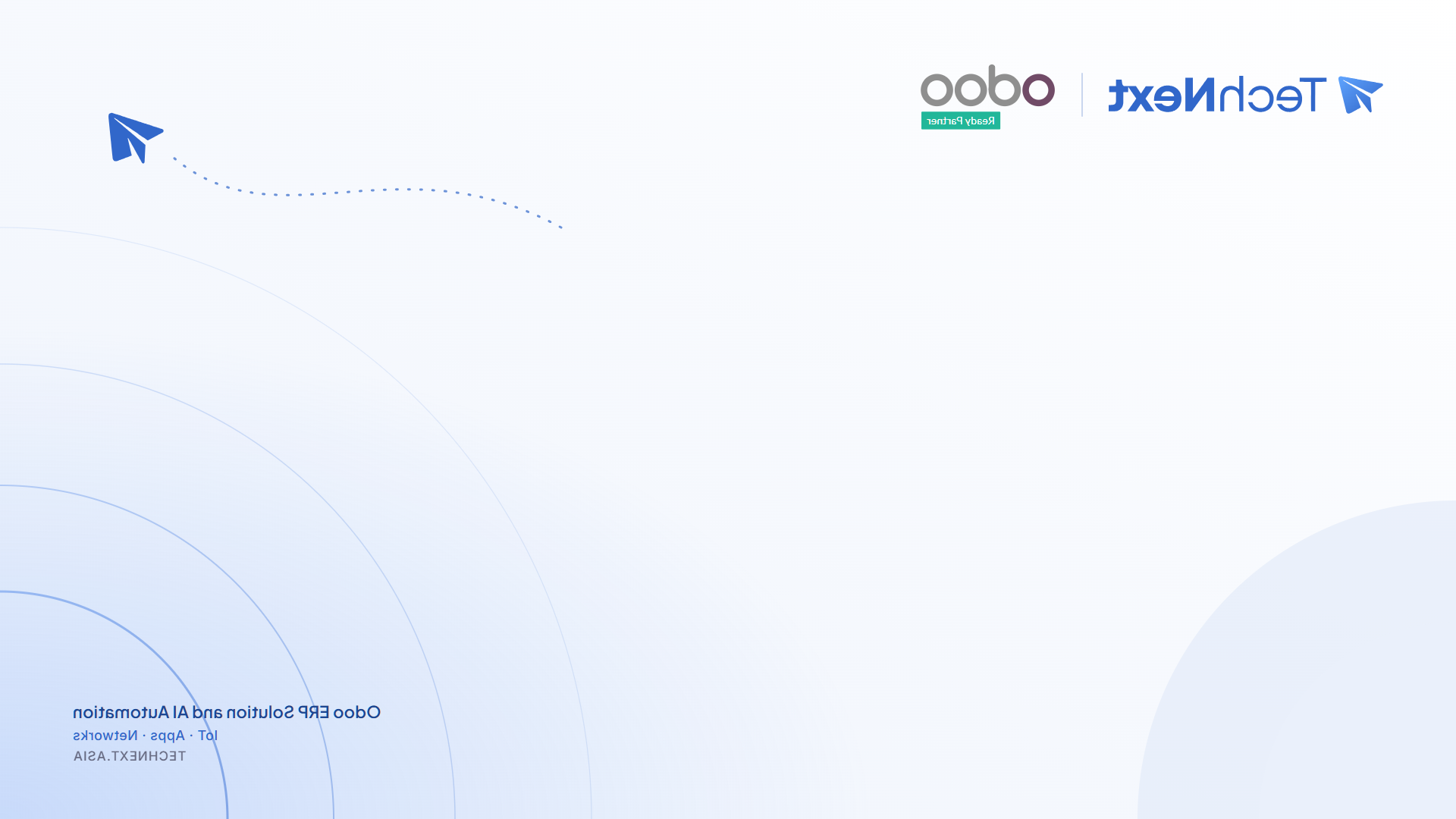
Light background, TechNext and Odoo logos, soft blue arcs and a paper-plane flight path
Daylight Normal Mirrored
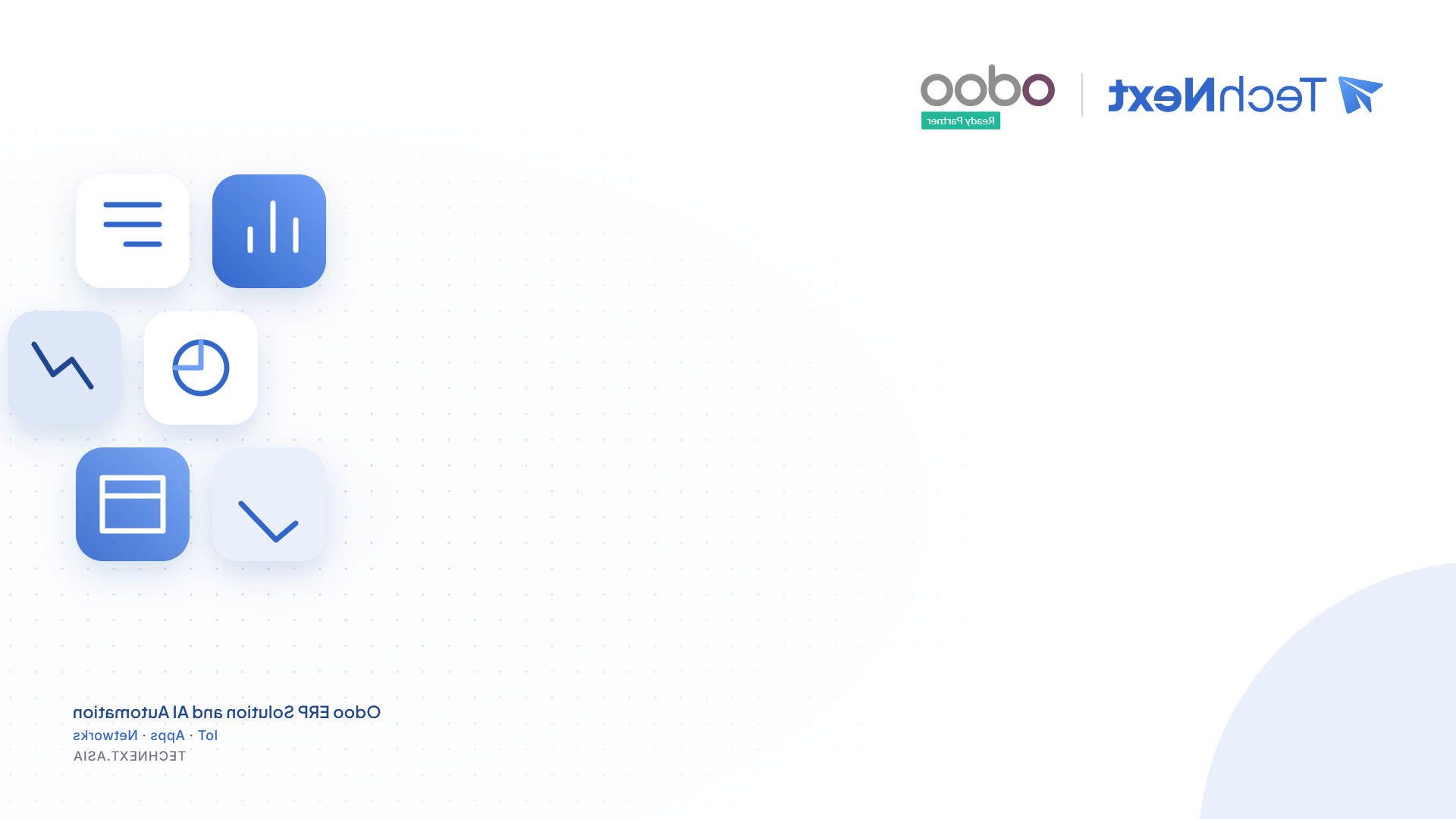
White background, TechNext and Odoo logos, floating ERP app tiles
Modules Normal Mirrored
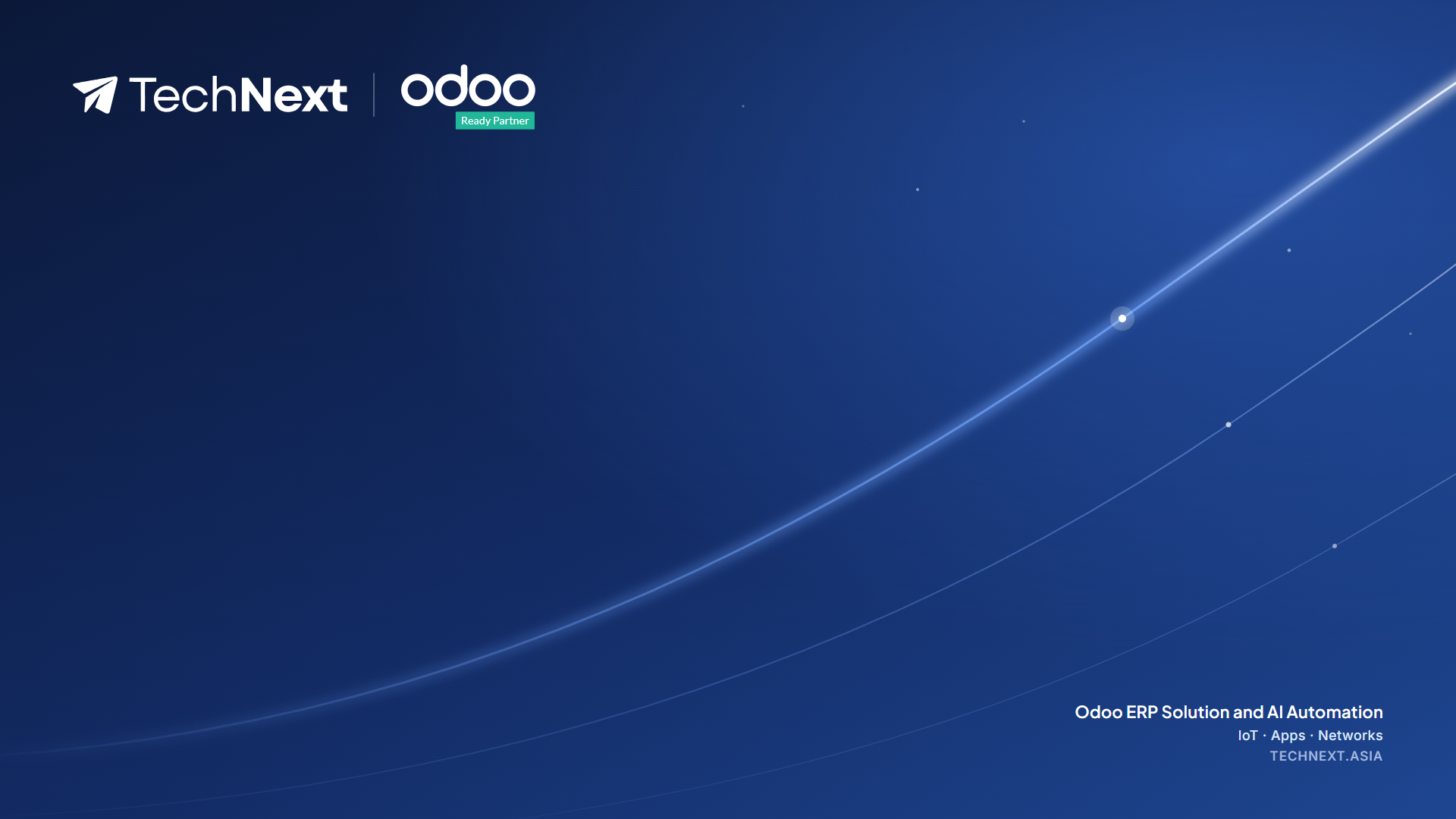
Navy background, TechNext and Odoo logos, glowing flight paths
Midnight Normal Mirrored
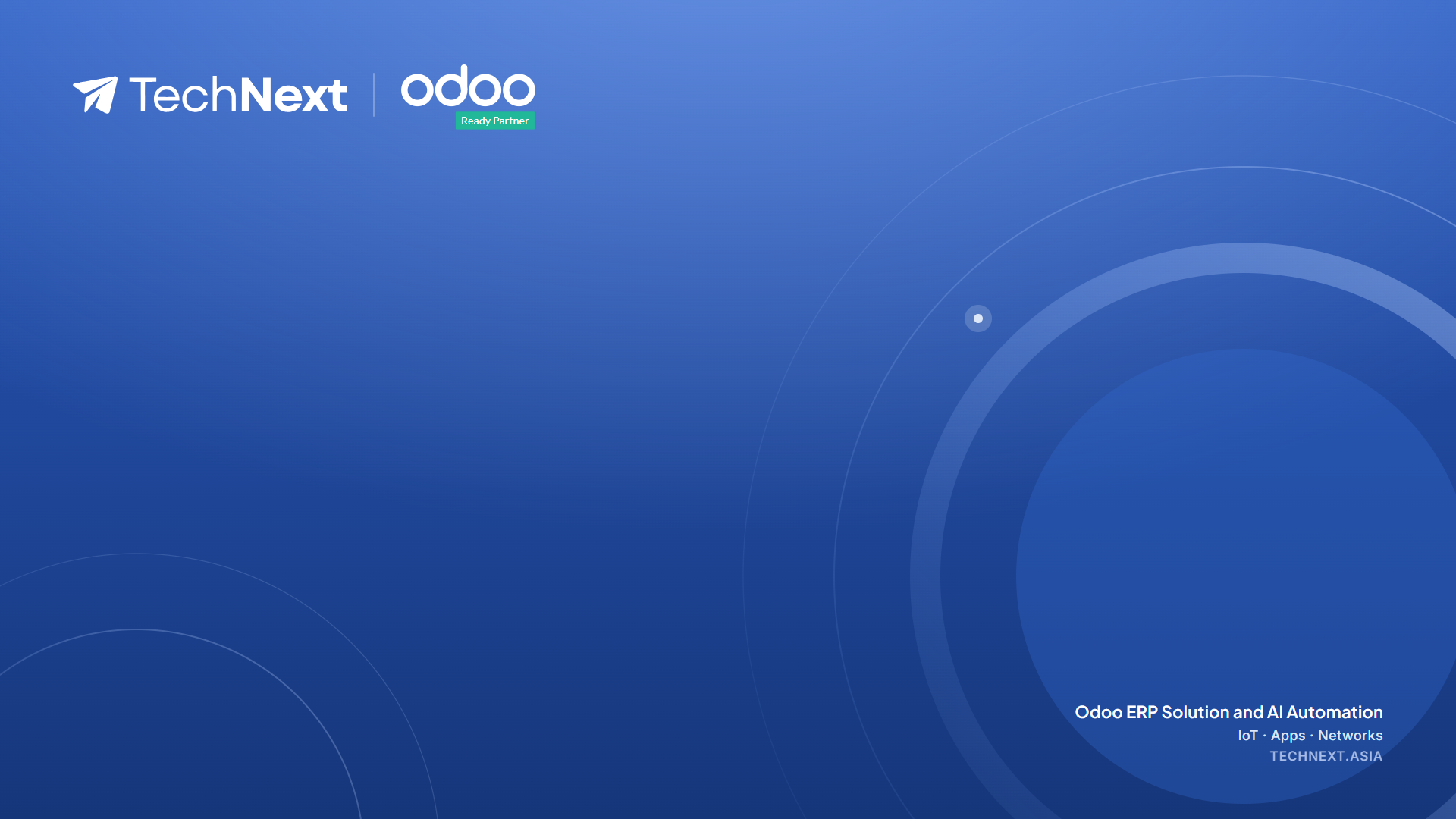
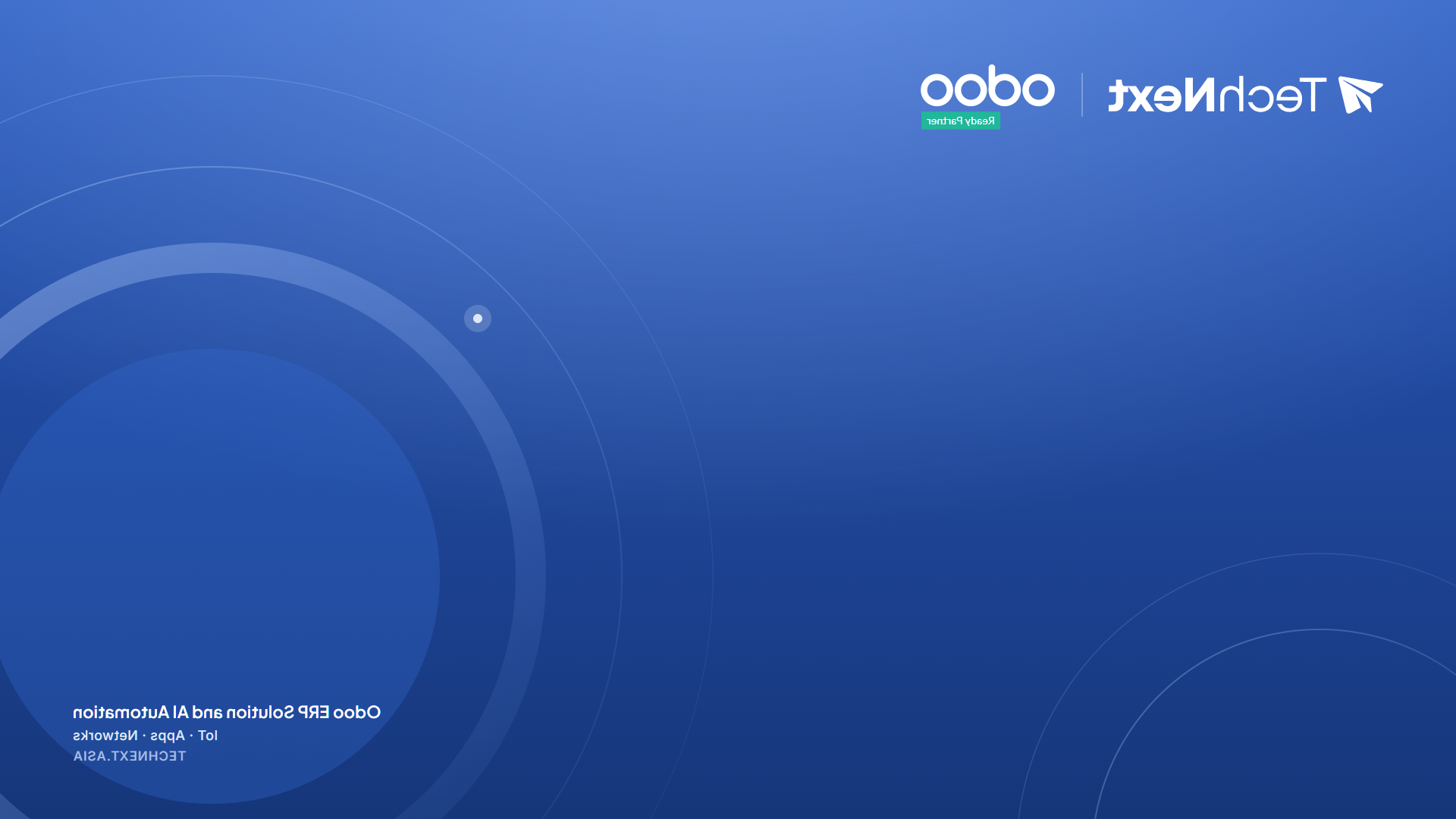
Brand-blue background, TechNext and Odoo logos, soft orbit rings
Horizon Normal Mirrored
Normal reads correctly to everyone else on the call. Mirrored is flipped left to right; pick it only if your app shows the logo backwards in your own self-view and that bothers you.
Tutorial Zoom, Teams and Google Meet

Zoom

  1. Download a background above.
  2. Open Settings → Background & Effects.
  3. Under Virtual Backgrounds, click +, then Add Image, and pick the file.

Microsoft Teams

  1. Before or during a call, click More (…) → Video effects and settings / Background effects.
  2. Click Add new, upload the background, select it and click Apply.

Google Meet

  1. In the preview or during a call, click Apply visual effects (the sparkle icon).
  2. Under Backgrounds, click the + tile and upload the background.
Not sure which to pick? Start with Normal. If the logo looks mirrored in your own preview, that’s just your self-view; others see it the right way round.
5

Business & ID cards

One generator for both: business cards with a vCard QR, and staff ID cards with your photo.

Business & ID card generator

Business card (3.5 × 2 in): pick your name or add yourself, check the contact side with its vCard QR and the blue brand side. Staff ID card (CR80, bank-card size): upload a PNG headshot, a transparent one gets a brand background and is framed for you; the back carries your details and a barcode. Both download as a 600 or 1200 dpi PNG or a print PDF with optional bleed.